
Help
Creating an Account
To get the most out of Everything Theatrical, click ‘Create an account’.
Enter your own personal details, even if you are using the site as part of a company or organisation.
Once you’ve ticked our terms and conditions, click Register. You’ll then be asked to verify your email address. Go to your email and you should see a message asking you to click on the link. Be sure to check your junk or spam folder if you can’t see it.
Click the link and enter your details again so we know it’s you. We always recommend 2 Factor Authentication and/or using a passkey if you’re signing in on your own device to keep your account secure.
Completing your profile
In this section, we ask three simple questions about you.
These questions make sure we deliver content that is suitable for you, no matter whether you are a performer or technician, professional or amateur, do something theatrical every day or just occasionally for fun.
- How many shows/ productions are you involved in with each year?
- What region do you operate in?
- How many theatrical roles do you have?
These questions make sure we deliver content that is suitable for you, no matter whether you are a performer or technician, professional or amateur, do something theatrical every day or just occasionally for fun.
What Happens Next?
You’re onstage! Click Exit and start exploring the site.
What is Everything Theatrical?
Everything Theatrical is a marketplace and inventory platform designed for the performing arts. It helps theatre groups, schools, performers, production teams and creatives buy, sell and manage theatrical resources.
Who can use Everything Theatrical?
Everyone and anyone! We are particularly here to serve people involved in the performing arts, including individuals, schools, amateur dramatic societies, professional companies, venues, freelancers and creative teams.
Do I need an account to browse?
You can browse many items without an account, but you'll need to register to buy, sell, save inspiration or create an organisation. Join the hundreds of theatrical groups and individuals already signed up.
Is Everything Theatrical free to join?
Yes, creating an account is free. We take a small commission on every item sold through the site to offset the running costs and keeping Everything Theatrical available for everyone.
What's the difference between an Individual and Organisation account?
Every user receives an Individual account when they register. Organisation accounts allow multiple people to manage inventory and purchases on behalf of a group, school, society or business.
What can I sell?
Everything Theatrical! It's in the name. Resources including costumes, props, scenery, lighting, sound equipment, books, scripts, scores, puppets, vehicles and much more.
What can't I sell?
Illegal items, counterfeit goods, dangerous materials, unauthorised copies of copyrighted works and any item prohibited by our terms.
If you're unsure whether an item can be listed, check our Terms before creating your listing. If you're still unsure, it's better to check with us first rather than listing something that may not be permitted.
If you're unsure whether an item can be listed, check our Terms before creating your listing. If you're still unsure, it's better to check with us first rather than listing something that may not be permitted.

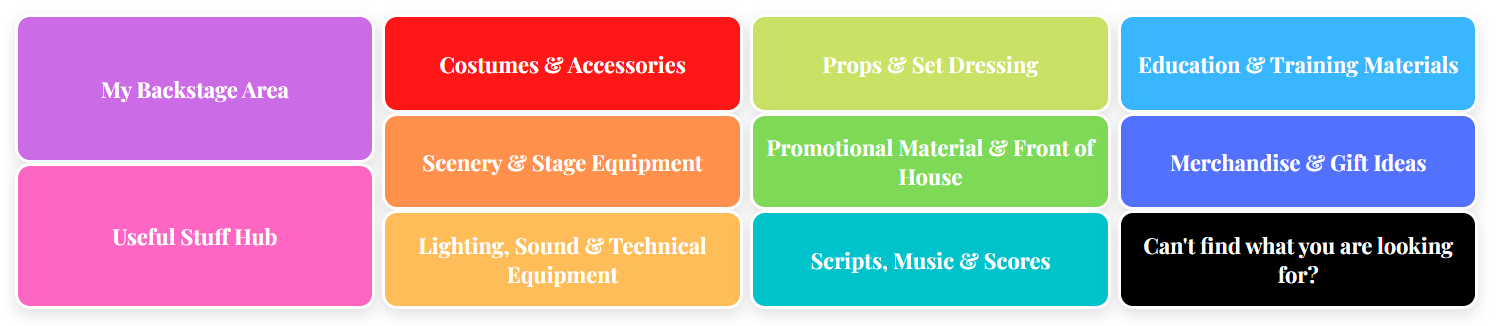
In addition to the Categories, you have My Backstage Area
Use this area to Keep track of your own items, manage listings, and organise your inventory.
When you click this tile you will see seven areas at the top, to switch between.
This is also where you can upload items that you, or an organisation that you are associated with own. Click HERE to upload an item.
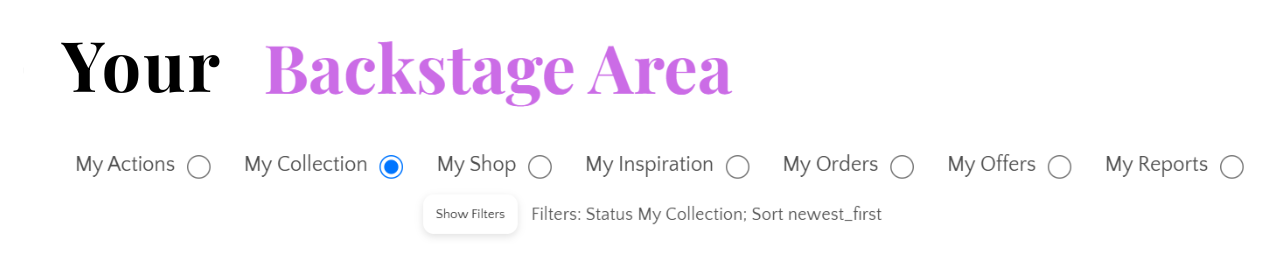
Let's Add an Item
From the Index page click the purple box: My Backstage Area.
Then make sure you have selected ‘My Collection’ and then click ‘An an Item’.
This is where all your item data is stored, regardless or not whether you want to sell it. Many people use us just as an inventory system.
Then make sure you have selected ‘My Collection’ and then click ‘An an Item’.
This is where all your item data is stored, regardless or not whether you want to sell it. Many people use us just as an inventory system.
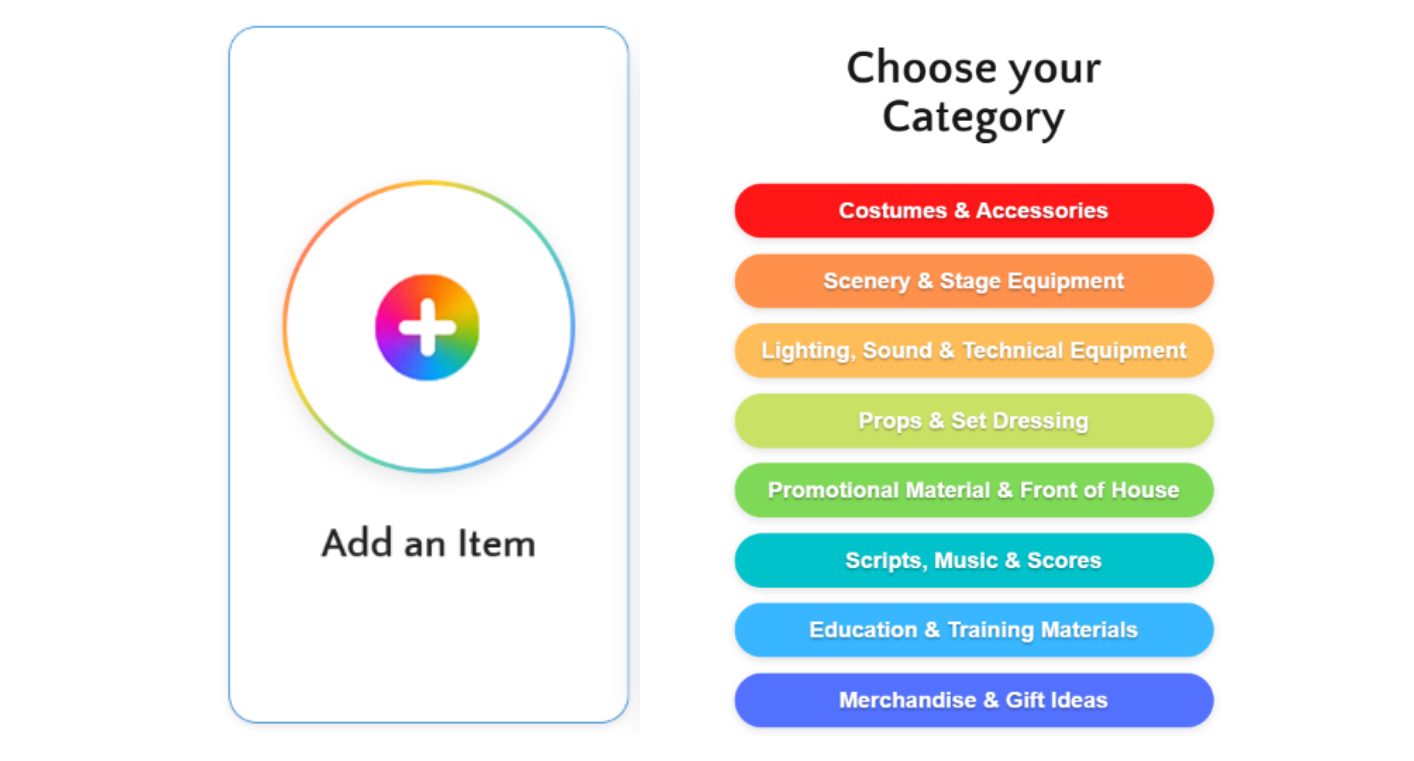
Select your Category - We have 8 categories to choose from, these cover all the types of items we allow to be listed on our site.
Not sure which category to choose, don't worry, choose one and explore the sub-categories. If you can find a sub-category that accurately describes your item, you've probably found the right place.
Select your Sub-Category - Each category has different sub-categories to help users find your items efficiently. If you don’t feel your item fits exactly select the closest match. If you're stuck between two options, choose the one you think a buyer would be most likely to look under.
Add a Name - Make this short and concise, under 30 characters. Any extra detail or longer names can be added to the description.
Add Quantity - If quantity is more than 1, this means you are happy to sell these separately, rather than as a set. If you are selling a set of something that will be sold together, keep the quantity as 1.
Add Condition - We accept all types of items, even well worn items that can be up-cycled, just make sure you describe it accurately.
Add Description - Need to add in some extra detail? Here you can display extra text for potential buyers.
Selecting An Item to Sell
First you have to upload an item. Then once you're finished, you will see the button 'Put on Sale'
If the 'Put on Sale' button isn’t there, it probably means you haven't told us enough about your item yet. Review any areas highlighted in red.
Next, add the price you would like to sell your item for.
If desired, click ‘Accept Offers’, which will allow members to ask you for a different price.
Choosing your shipping options
Next, selecting your shipping preferences. You can choose one, two or all three options to appeal to the most amount of buyers.
The Orange category - Scenery & Stage Equipment - does not allow seller to post, due to the large specialist nature of these items.
Seller ships - This means you take the responsibility of shipping the item, and you can add your desired price below. We always recommend paying for tracked shipping.
Buyer collects - This is a great option for local buyers, and if the collection location is public location.
Buyer arranges courier - This means the buyer takes the responsibility of arranging a courier to pick up the item instead of collecting it themselves. This is great for sellers who don’t have time to be shipping parcels, or fragile items.
Finally, you will see ‘Date Available’. This is automatically set to today’s date, but you can change this to a future date if that suits you or your organisation better.
Hurrah, all done! You'll now be able to view it in 'My Shop'
Ready to Get Paid?
We don't want to hold onto your money, so we DO NOT have a 'Vinted Balance' or similar system. Instead, we use the globally trusted platform Stripe. Once you are connected to stripe any money you make goes straight into your bank account.
How do I connect to Stripe?
From the homepage, click the menu (top right) and then click My Settings.
If you are selling items yourself, and you haven't connected stripe it will say 'Action needed' and you'll need to click Manage, you can return to this page at any time.
How do I connect to Stripe?
From the homepage, click the menu (top right) and then click My Settings.
If you are selling items yourself, and you haven't connected stripe it will say 'Action needed' and you'll need to click Manage, you can return to this page at any time.

Similarly, if you are connecting an organisation to your a bank account, go to My Settings, click Manage against the organisation and you will see the following.

Connecting to Stripe
If you or your organisation has used Stripe before, click ‘Connect existing account’, you’ll need those details ready.
If you have never used Stripe before, but would like to SELL on the site, you will need to complete full Stripe onboarding. Allow about 15 minutes, although it often is quicker.
If you would rather skip this for now, click ‘Quick Start’ You can still buy and sell on our platform, but before you can collect money from sales you will have to complete the on boarding process.
What Happens Next?
Now your stripe is connected, you will automatically receive money from items you have sold.
What are the Everything Theatrical fees?
It's really important to us that the website is free to browse, and free to list, with no hidden fees!
Running this site does involve costs and typical card processing payments which we can't avoid. We have kept these costs to an absolute minimum and always strive to be transparent about our costs.
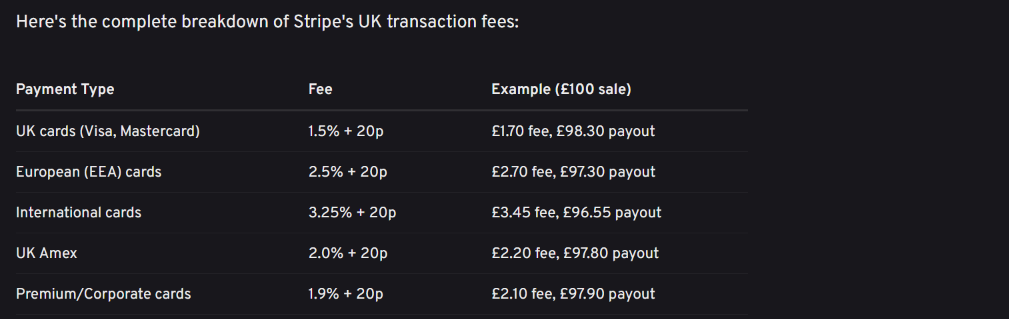
For Sellers: There is a stripe fee which is automatically taken out when you sell an item. So as a seller you receive the item price minus the stripe fee when the sale is complete. For most UK cards this is 1.5% + 20p. If your sold your item for £100 this would be 35p. This is controlled by Stripe, and is separate to Everything Theatrical. More information about Stripe can be found HERE
For Buyers: The fee is always added to the seller's listed price, so there are no hidden fees, and you always know how much you are paying in advance. It's currently +15% of the sellers chosen price. It helps us run, maintain and protect the marketplace, while providing support and protection for everybody.
What does the fee cover?
The Everything Theatrical Fee helps cover the costs of providing a safe, reliable marketplace, including:
• Payment processing — including fees charged by our payment provider, Stripe.
• Fraud prevention and security — helping keep payments and accounts secure.
• Customer support — providing help when buyers or sellers need assistance.
• Dispute resolution — helping buyers and sellers resolve issues where something hasn't gone as expected.
• Running and maintaining the marketplace — including hosting, technical infrastructure and the ongoing development of the site.
• Buyer and seller protection — we securely hold the buyer's payment until the transaction is ready to be completed, helping protect both parties.
What about postage?
There are no postage fees. Sellers have the option of offering postage or not for the majority of items.
We do cap postage fees at £15. If you are a seller and need to charge more than this in order to safely post your item, add this onto your cost price.
We do cap postage fees at £15. If you are a seller and need to charge more than this in order to safely post your item, add this onto your cost price.
I'm a seller, can I calculate my fee upfront?
Absolutely! As a seller you can calculate what fee you will be charged by our payment processing provider Stripe. The most important factor to be aware of is that it depends what type of card you use when you set up your Stripe account. This means when you get paid at the end of the process you know in advance exactly how much you will get. Most UK cards are the same, but take extra care if you choose to use an AMEX or a EU card. See the table below for current rates.
I Didn't Receive My Verification Email
Check your junk or spam folder first. If you still can't find the email, try requesting a new verification email from the login page. If the problem persists, contact us using the email at the bottom of this page.
I Can't Log In
Double-check your email address and password. If you've forgotten your password, use the password reset option. If you're still unable to access your account, contact us using the email at the bottom of this page.
My Password Reset Email Hasn't Arrived
Please allow a few minutes for the email to arrive and check your spam folder. Ensure you are using the email address associated with your account.
I Can't Complete Stripe Onboarding
Stripe may require additional information or identity verification before you can receive payments. Check your Stripe account for any outstanding actions. If you're unsure what is required, contact support.
My Listing Isn't Appearing in Search Results
New or recently edited listings may take a short time to appear. In the meantime, check that your listing is active and complete, and that you haven't got any filters set that prevent it from being shown.
My Images Won't Upload
Check that your image file is a supported format and within the maximum file size limit. If an image is too wide or tall, you may be asked to crop it before uploading. Similarly if your photo is too small, because we don't want small blurry photos being used.
A Buyer or Seller Isn't Responding
Most users respond within a few days. If not they will be automatically prompted by us. If communication has stopped for over 7 days and an active order is affected, we will be reviewing the situation.
My Item Has Sold but I Can't Access Payment
To receive funds, you must complete Stripe onboarding and ensure your payout details are up to date. Any funds due to you will be released once the transaction has been successfully completed.
I Received an Item That Doesn't Match the Description
Contact the seller first to try and resolve the issue directly. If you cannot reach an agreement, contact us with details of the order and any relevant photographs.
My Order Hasn't Arrived
Check the order status and any tracking information provided. If the estimated delivery time has passed, contact the seller. If the issue remains unresolved, let us know directly.
How Do I Report a Problem With a User?
If you believe a user is behaving inappropriately, listing prohibited items, or breaching our terms, please contact us directly using the email below.
If you have bought an item, you can also do this via the red flag on the item page.
If you have bought an item, you can also do this via the red flag on the item page.
Contact Support
If you can't find the answer you're looking for, we're here to help.
📧 Email: customerservices@everythingtheatrical.com
When contacting us, please include:
This will help us resolve your query as quickly as possible.
📧 Email: customerservices@everythingtheatrical.com
When contacting us, please include:
- Your name
- Order number (if applicable)
- A description of the issue
- Screenshots where helpful
This will help us resolve your query as quickly as possible.
Where to Search
Did you know you can search the whole website, or search within a category or subcategory?
This makes it easier to find what you need and filter out what you don't.
For example, if you search Hamlet on the main site, you might see:
Costumes from past productions of Hamlet
Programmes from past productions of Hamlet
Props and scenery from productions of Hamlet
Merchandise from productions of Hamlet
Depending on what you have in mind, searching within a category might help you find it faster.
Whether you're looking for the perfect costume, a piece of scenery or a few props for your next production, a few simple search tricks can help you find exactly what you need.
Start with simple searches
Try the obvious word or phrase first. Search looks through item titles and descriptions, and understands singular and plural forms.
"dress" "hat" "microphone" "playbill"
Search for key words
Use a phrase when the words belong together.
"red dress" "Edwardian hat"
Combine words with AND
Use AND when you want results containing both terms.
This will only give you results where both terms are found in the listing.
It won't give you red tops, red hats, red scenery, red cables.
Give yourself more options with OR
Use OR when either word would work.
throne OR chair
cage OR prison OR trap OR net
Try broader searches
If you're not getting enough results, wide: can broaden your search.
Our search understands certain synonyms, so you may find related items even when sellers have used different words in their descriptions.
For instance, searching lighting can also find lamp.
Too many results?
Narrow it down using our filters.
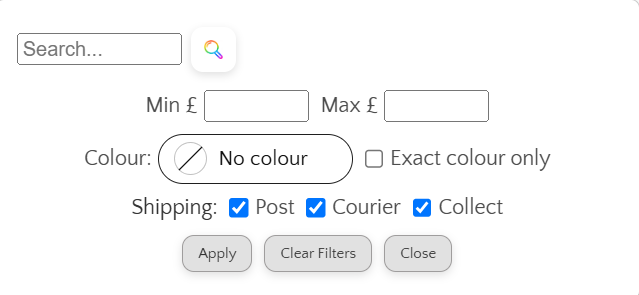
Sort your results to suit your needs
Use the sorting options to quickly find what you're looking for. Whether you want to see the newest listings, lowest prices or highest prices first, sorting your results can help you browse the marketplace in the way that works best for you.
What's the benefit of an Organisation Account?
Whether you're a theatre company, school, college, youth group, festival or professional production team, an Organisation Account helps everyone work together.
Plan productions together
Theatre is a team effort, and your account should be too.
Different members can build and share inspiration lists for a production. A costume designer can create a wishlist and share it with the director, while the props team can keep track of the items they're sourcing. Everyone can see what's been found and what still needs to be sourced, helping avoid duplication and saving valuable time.
Share the workload
Selling items doesn't have to fall to one person.
With an Organisation Account, different members of your team can take responsibility for different tasks. For example:
No more sharing passwords or relying on one person to do everything.
Different members can build and share inspiration lists for a production. A costume designer can create a wishlist and share it with the director, while the props team can keep track of the items they're sourcing. Everyone can see what's been found and what still needs to be sourced, helping avoid duplication and saving valuable time.
Share the workload
Selling items doesn't have to fall to one person.
With an Organisation Account, different members of your team can take responsibility for different tasks. For example:
- A wardrobe manager can photograph and list costumes.
- A committee member can respond to offers.
- A stage manager can arrange collection or postage.
- A treasurer can keep track of sales and finances.
No more sharing passwords or relying on one person to do everything.
Better record keeping
Keep a clear record of what your organisation owns, what you've bought, what you've sold and how much you've spent or earned.
Finance reports can be shared with your treasurer, making budgeting and end-of-year accounts much easier.
Finance reports can be shared with your treasurer, making budgeting and end-of-year accounts much easier.
Perfect for changing committees
Many theatre groups rely on volunteers, with committee members changing regularly.
Instead of important information disappearing when someone steps down, your organisation's inventory, history and records stay with the Organisation Account, ready for the next team to take over.
Instead of important information disappearing when someone steps down, your organisation's inventory, history and records stay with the Organisation Account, ready for the next team to take over.
Save money
One of the biggest benefits is avoiding unnecessary purchases.
If everyone can see what's already in stock, you're far less likely to buy duplicate costumes, props or equipment that were simply forgotten about in storage.
If everyone can see what's already in stock, you're far less likely to buy duplicate costumes, props or equipment that were simply forgotten about in storage.
Grow with your organisation
You don't have to use every feature from day one.
Many organisations start by simply recording what they own. As they become more familiar with Everything Theatrical, they begin collaborating on productions, managing sales together and making full use of shared wishlists and reporting.
Perfect for:
Amateur dramatic societies
Professional theatre companies
Schools and colleges
Universities
Youth theatres
Dance schools
Choirs and orchestras
Festival organisers
Production companies
Community arts organisations
Naming your Organisation
Visit 'My Settings'
Here you will see a list of any organisations you are a part of. If you are not currently part of any organisation, you will only see your individual account.
Click 'Add' to set up a new Organisation. If you already belong to one using Everything Theatrical, you should find a match, and can request to join it directly. If no match appears, continue and Save to create a new organisation, then add others.
Joining an existing account
If you are new to Everything Theatrical, and someone asks you to join an organisation, you should receive an email. If you know your organisation is already using the site, but your haven't received an email, you can request to join by following the same steps as above. Add an Organisation, find it in the list and then wait to be approved by the admin of that group.
A good listing helps the right buyer find your item, understand exactly what they're getting and feel confident buying it.
Start with a clear title
Your title should tell buyers what the item is at a glance.
Titles are limited to 30 characters, so keep them short and useful. You don't need to squeeze every detail into the title, that's what the description is for.
Try to avoid:
Amazing Beautiful Vintage Red Dress!!!
Must Sell ASAP
Huge collection of props
Think about the words a buyer is most likely to search for and put the most important ones in your title.
Make your description work for you
Your description is where you can give buyers all the useful information that won't fit in your title.
Theatrical items are often quirky and we want you to show, the good, bad and ugly in your listing.
This is particularly important because our search looks through item descriptions as well as titles. Including relevant details in your description helps your item appear when someone searches for it.
Think about what the user would want to know. Can they fit it in a car? Could it be used for a certain show?
What has it been used for?
If it has previously appeared in a production, this can be useful context. For example, “Used as the handbag in our production of The Importance of Being Earnest.”
Mention things such as how it is assembled, whether parts are removable, or anything that could affect collection or transport.
Be honest about condition
Second-hand items are often well-loved, and that's part of what makes them useful!
The majority of buyers are not expecting to purchase something in perfect condition so don't be afraid to mention signs of previous use. Clear information about condition helps buyers make an informed decision and avoids surprises later.
If there is a noticeable fault, stain, repair or piece missing, say so in the description and show it in a photograph where possible.
Adding Tags
Tags don't show on the listing, but they are a great way of getting your item found. For costumes, props and set, we recommend adding the names of possible shows these items can be used for.
For example, a Victorian-style dress might be tagged with Oliver!, A Christmas Carol or My Fair Lady.
You can also add other useful search terms, such as a character name, style, period or specific use.
The more relevant tags you add, the more opportunities there are for your item to be discovered, but keep them relevant to the item you're actually selling. Admin will remove tags that are not relevant.
Take good photographs
Great photographs can make all the difference to your listing. They help buyers understand exactly what you’re offering, show the condition of the item and, most importantly, help your listing stand out.
You’ll need to add a minimum of 3 and a maximum of 6 photographs to your listing.
Lights, camera, action!
Good lighting is one of the easiest ways to improve your photographs. Small items benefit from being taken outside and photographed in natural light.
Daylight is not always possible when capturing items inside a performance space, but taking photographs under stage lighting is the second best option.
Daylight is not always possible when capturing items inside a performance space, but taking photographs under stage lighting is the second best option.
Try to avoid using the flash on your phone, as it can create glare and make an item look flat.
Keep it real
It’s also worth remembering that your photos don’t need to be overly staged or heavily edited. Raw, honest images are often the most effective. You don’t need to use AI enhancements, artificial backgrounds or complex editing, in fact, keeping things simple and true to life is usually better. Buyers want to see the real item as it is, not a polished or altered version of it, so authenticity will always work in your favour.
Your photograph requirements
To keep listings looking consistent and make sure photographs display correctly, please make sure your images meet these requirements:
Minimum: 3 photographs
Maximum: 6 photographs
File types: JPG or PNG
Aspect ratio: No more than 3:1
That means extremely wide or panoramic images may not be accepted. If you're unsure, a standard landscape or portrait photograph is usually a safe choice.
Get the details right
Before taking your photographs, take a moment to check:
Is the item clean and presentable?
Is the whole item in focus?
Can you see the important details?
Are the colours reasonably true to life?
Is anything obscuring the item?
Is there enough light?
Is the photograph straight rather than noticeably tilted?
You don't need professional photography equipment. A modern phone camera is more than capable of taking great listing photographs.
Ideas for your 6 photographs
Make the most of your 6 photos by capturing your item in a range of different ways
Whole Photo - If your item can be photographed in one go, it's much more likely to attract buyers. We recommend having this as your primary image. If you have large rigging, backcloths or set that can't be captured in one go, that's fine. Do your best to capture as much as you can.
The important bits – Photograph the features a buyer is most likely to want to know about. This could be the fastening on a costume, the back of a flat, the connections on a piece of technical equipment, the mechanism on a prop or the fixing points on a piece of rigging. Think about what you'd want to inspect if you were buying it yourself. If your item has intricate details, show them off with a close up.
Imperfections - Embrace any marks, stains or problems with your item and let your buyer see what these are. Our buyers are often looking for something they can renovate, change and put their own spin on.
Different angles – Give buyers the opportunity to see your item from the front, back, side and, where useful, underneath. This is particularly helpful for set pieces, furniture, props and technical equipment where the construction or fittings aren't obvious from the front.
Labels - If your item has a label, show us. It adds authenticity and helps users understand the history of your item, whether it's electrical, unused make-up, clothing or musical equipment.
Size comparison - Especially for props and set dressing, buyers benefit from understand the size of the item. In addition to measurements, taking a photograph of a human holding or standing near an item is a easy way to show buyers quickly what size it is in real life. Or next to another familiar object such as a door frame or clothes hanger.
In production – Costumes being worn, scenery under stage lights, props on stage... if you have a photograph of your item being used in a production, show it! It helps buyers see the item in context and imagine how they could use it themselves. Costumes in particular often look much better being worn. Show us what yours looked like in a recent production, or get a friend to try it on.
What comes with it? – If you're selling several pieces together, photograph everything that's included. This is especially useful for costumes with accessories, props with additional parts, or technical equipment with cables and attachments. It helps buyers see exactly what they're getting.
Video – Show it in action – You can also upload a 30-second video to give buyers an even better idea of your item. Show moving parts working, demonstrate how something opens or folds, show a piece of scenery being assembled, or give a quick 360° view of a larger item. For costumes, you could show how the garment moves when worn. A short video can answer questions that photographs can't.